
KAKUCUT GUIDE
How to make word-by-word
karaoke captions on iPhone.
To make karaoke captions in KakuCut, generate captions from your video’s speech, open Style, and choose Karaoke. Each word turns yellow at the moment it is spoken, in the preview and in the exported MP4. The word timing comes from on-device speech recognition, so captions you generate yourself follow the speaker most closely.
Updated October 23, 2026 · By KakuCut
1. Generate captions from speech
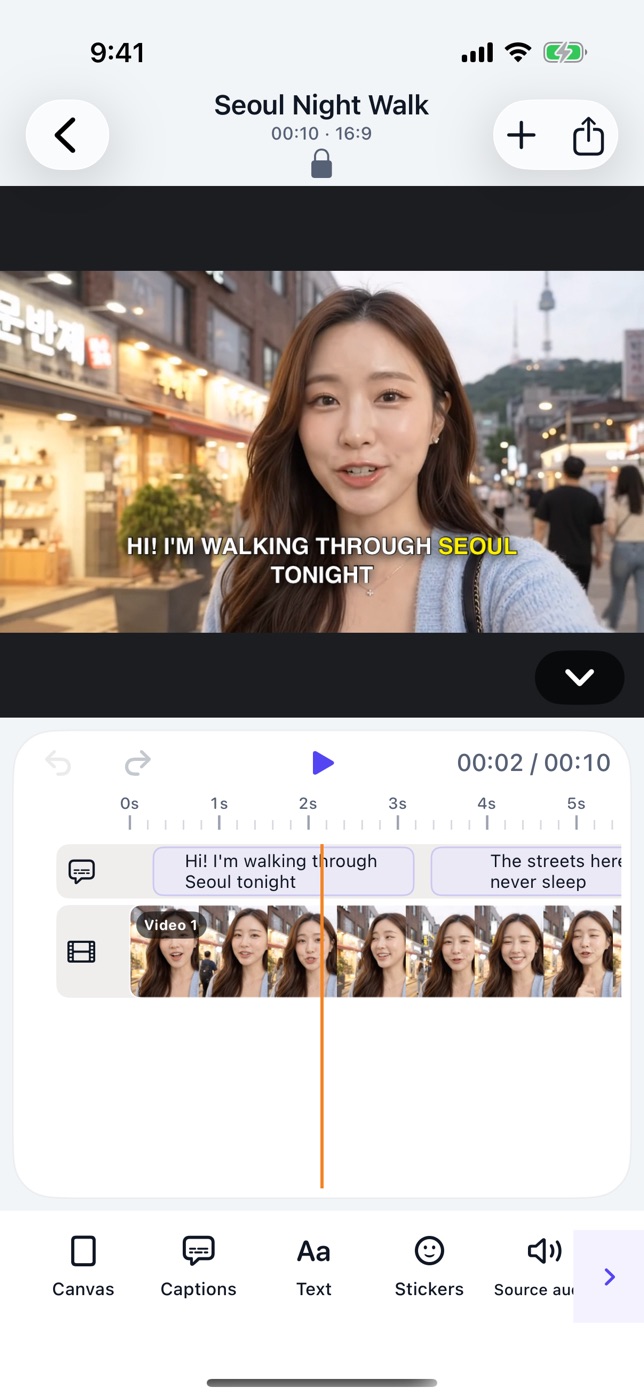
Create a project with your video, open Captions, choose the spoken language, and tap Generate captions. KakuCut records when each word is spoken while it transcribes. For English that means each word; for Chinese, Japanese, and Korean it is usually each character.
2. Fix the words
Correct misheard words before you style the captions. Small corrections keep their timing: KakuCut matches your edited text to the recognized words and fills in the corrected ones between their neighbours. If you rewrite most of a caption, its highlight is spread evenly across the line instead.
3. Choose the Karaoke style
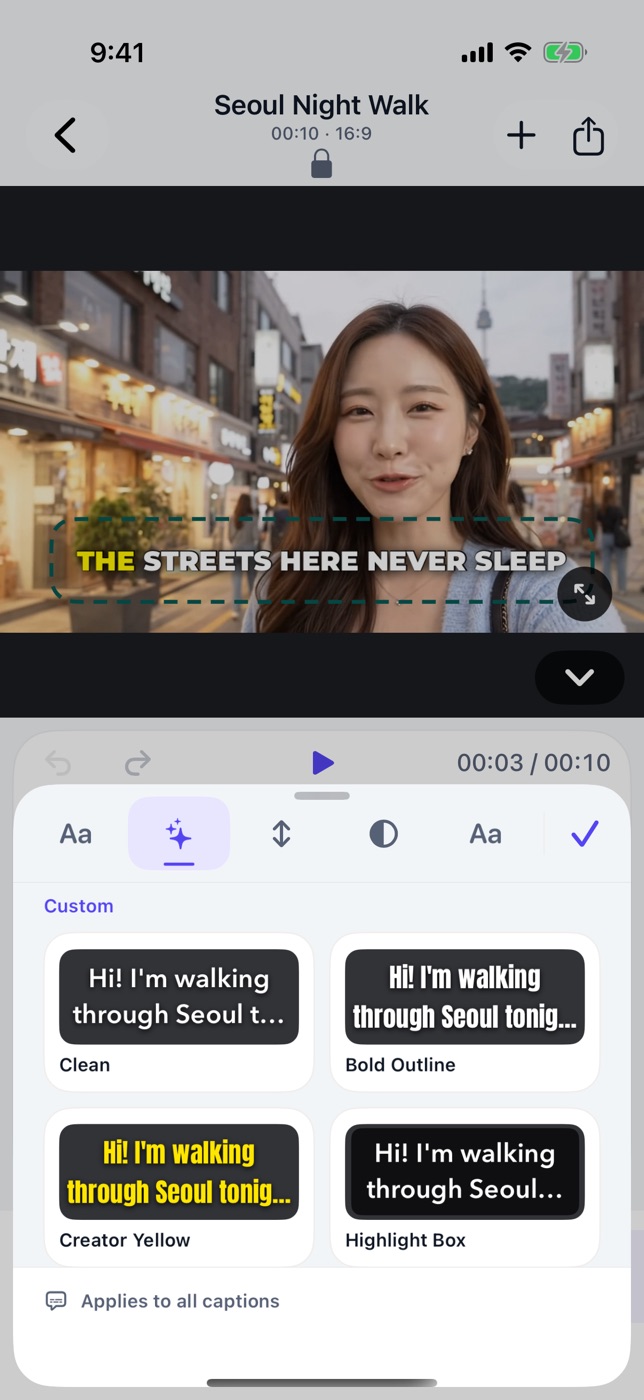
Select a caption on the timeline, tap Style, and choose Karaoke. The style applies to all captions in the project: bold uppercase text with an outline, and the spoken word in yellow. You can still change the font, size, and position afterwards.
4. Preview and export
Play the video and watch the highlight follow the speech. Then tap the share/export icon, choose the quality, and export. The word highlighting is rendered into the MP4, so it plays the same in Photos and on any social app.
Can I use karaoke captions with an SRT file or typed captions?
Yes, but the timing is estimated. Imported SRT captions and captions you type yourself have no recorded speech timing, so KakuCut spreads the highlight evenly across each line. For a highlight that follows the speaker, generate captions from the video’s audio. Exporting an SRT keeps only the text and timing of each line, not the word highlighting.
How to export or import SRT subtitlesDoes it work for Chinese?
Yes. Chinese speech is recognized character by character, so the highlight moves one character at a time, and Traditional Chinese caption fonts are included. Punctuation such as “。” lights up with the character before it.
How to add automatic captions to an iPhone videoTry it with one short clip
Generate captions, pick Karaoke, and export your first word-by-word caption video.
Download KakuCut on the App Store ↗