
KAKUCUT GUIDE
How to export or import
SRT subtitles on iPhone.
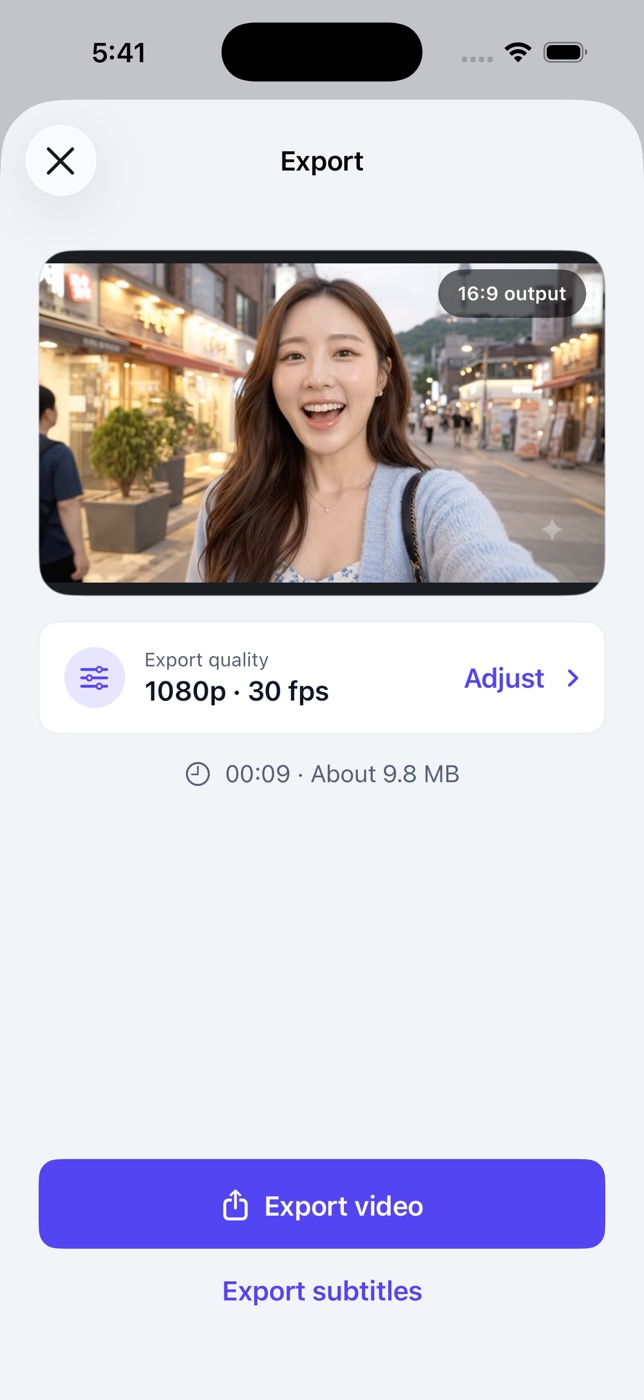
To export an SRT file on iPhone, open your project in KakuCut, tap the share/export icon, and tap Export subtitles. KakuCut creates an SRT file from your captions and opens the share sheet, where you can save it to Files or send it to another app. To bring in existing subtitles, open Captions and choose Import an SRT file.
Updated October 23, 2026 · By KakuCut
1. Export an SRT file
Check the caption text and timing first; the SRT contains exactly the captions in your project. Then tap the share/export icon at the top right of the editor and tap Export subtitles below Export video. You do not need to export the video first.
The share sheet opens with a file named after your project, such as My Trip captions.srt. Choose Save to Files to keep it, or send it to another app with AirDrop, Mail, or Messages. Each caption keeps its start time, end time, and text. Captions hidden by a clip trim are left out.
2. Import an SRT file
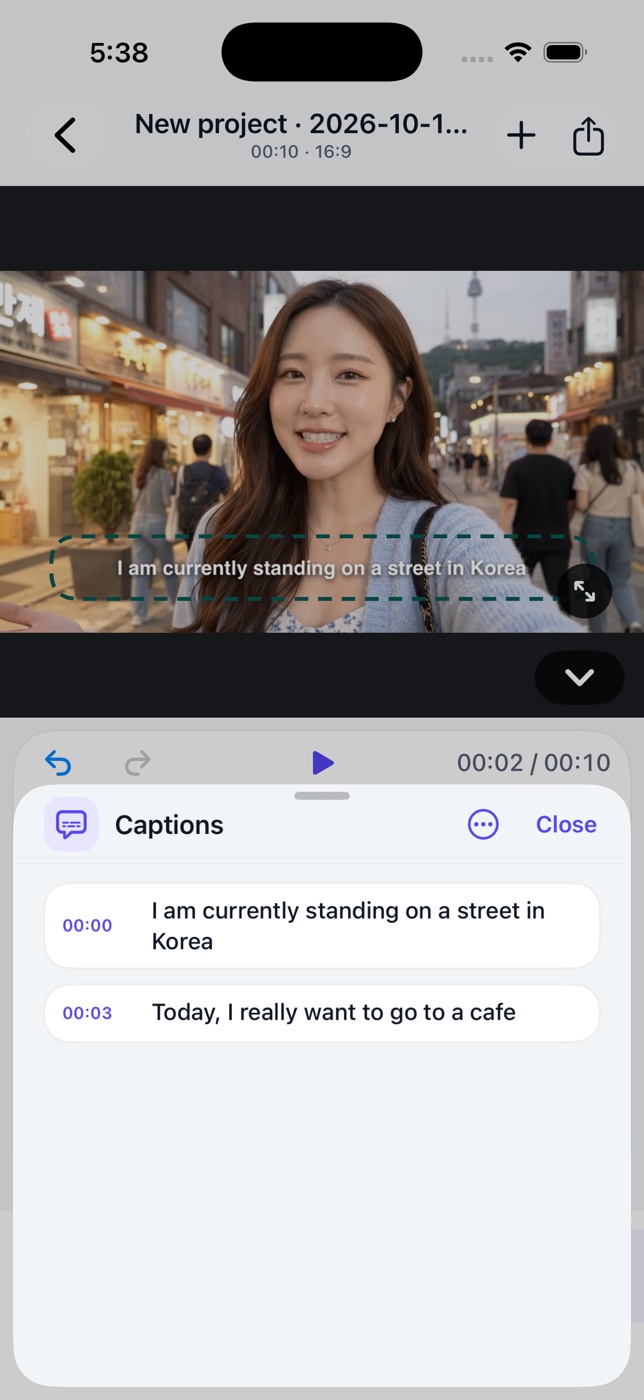
Open Captions from the editing tools. If the project has no captions yet, tap Import an SRT file. If it already has captions, tap the ⋯ button at the top of the Captions panel and choose Import an SRT file.
Pick the file from Files. Importing replaces all current caption lines, including your edits, so KakuCut asks you to confirm first. Your caption style is kept, and you can undo the import in the editor. After importing, play the video to check that the captions line up with the speech.
3. What KakuCut expects in an SRT file
An SRT file is plain text. Each caption has a number, a time range, and one or more lines of text, separated from the next caption by a blank line:
1
00:00:01,200 --> 00:00:03,800
Welcome back to the channel.

2
00:00:04,000 --> 00:00:06,500
Today we are making ramen.
Save the file as UTF-8 text so accented and Chinese, Japanese, or Korean characters import correctly. Times use hours:minutes:seconds,milliseconds, and each caption must end after it starts.
SRT or captions burned into the MP4?
Use Export video when you want captions visible in the video, with your font, color, and position. Use Export subtitles when a platform or another editor asks for a separate subtitle file. SRT stores only text and timing; it does not keep KakuCut caption styles or word highlighting. You can export both from the same project.
How to add automatic captions to an iPhone videoIf an SRT file will not import
“This SRT file contains an invalid timestamp.”
Check that every time range looks like 00:00:01,200 --> 00:00:03,800, including the hours. Minutes and seconds must be below 60.
“Every SRT caption must end after it starts.”
One caption has an end time equal to or earlier than its start time. Fix that line in a text editor and import again.
“No timed captions were found in this SRT file.”
The file has no caption blocks with a time range and text. Make sure you chose the .srt file, not a video or a different subtitle format.
Characters look garbled
The file is probably not UTF-8. Re-save it as UTF-8 in the app that created it, then import again.
Need help? Visit supportTurn your captions into a subtitle file
Generate or import captions, correct them, and export an SRT alongside your video.
Download KakuCut on the App Store ↗