Speech-first captions
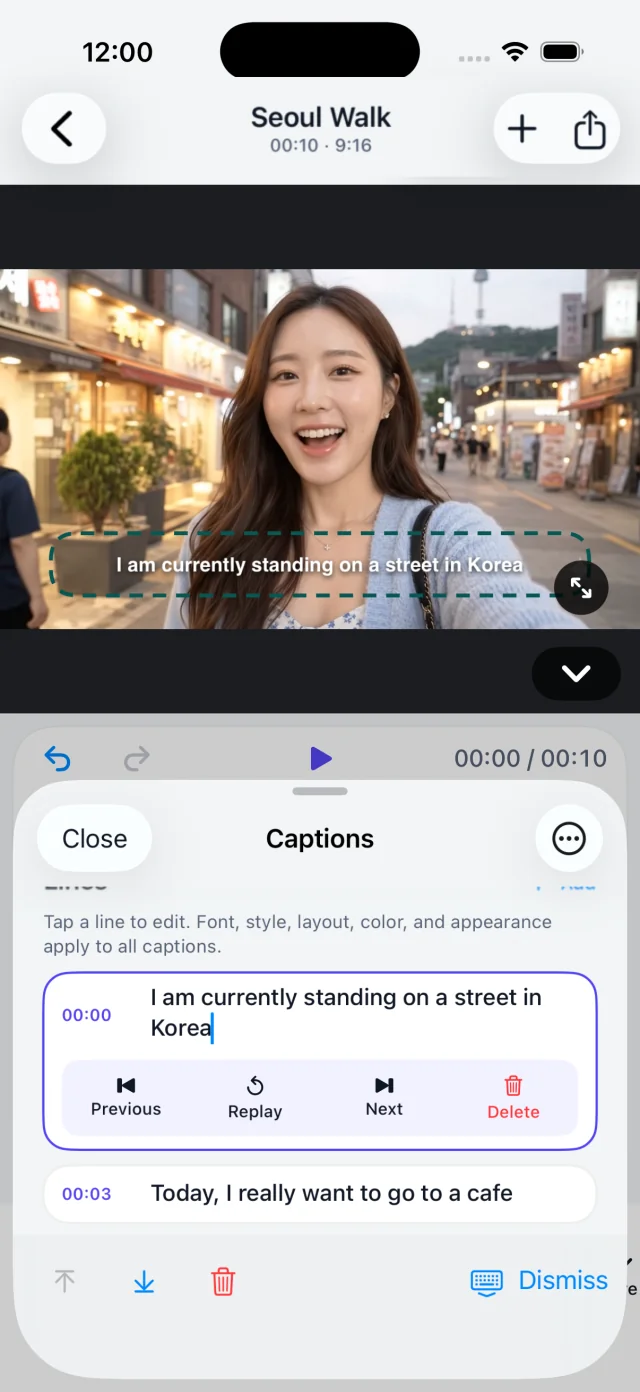
Turn a clip into a clear, editable story with on-device transcription. Fix timing, split lines, and style your words without leaving the edit.
Your voice,
in focus.
in focus.
 KakuCut
繁中
Get KakuCut ↗
KakuCut
繁中
Get KakuCut ↗
KakuCut is an iPhone video editor for creators. Trim clips, generate captions, add music, and export MP4 or SRT with no watermark; on supported devices, transcription runs on-device.
Free · No watermark · Requires iOS 17 or later · Built for iPhone


I am currently standing
on a street in Korea.
AI captions, on your iPhone.
Media stays local from import to export.
WHY KAKUCUT
Your ideas are yours. KakuCut keeps the edit close, gives you the controls you actually need, and gets out of the way.
Your videos stay on your iPhone while you edit. No account required.
Transcribe on-device, then tune every word, beat, and safe-area position.
From a quick trim to a polished Reel, the workflow stays focused and fast.
FEATURES
Turn a clip into a clear, editable story with on-device transcription. Fix timing, split lines, and style your words without leaving the edit.
Trim, split, speed up, and arrange multiple videos on a timeline that keeps every caption in sync.
Choose 9:16, 1:1, or 16:9. Add safe-area guides and make every frame ready for its destination.
Deliver a clean MP4 with no KakuCut watermark, or an SRT file. Share it anywhere, or save it straight to Photos.
Import music and sound effects, and let music lower automatically while someone speaks. Record a voiceover, enhance voices and reduce noise in the original audio, and set each clip’s volume.
Give each clip one of nine filters with adjustable intensity, or apply it to every clip. Add text and stickers, and pick from eight caption styles, including karaoke.
THE KAKUCUT PROMISE
KakuCut keeps project media in app-owned storage on your device. Captioning runs on-device when supported; Apple manages speech permission and any required language-model download.
Read our privacy policy ↗CAPTION GUIDES
Choose the workflow you need, with steps and real app screenshots.
Turn speech into captions, correct the text, and export your video.
Highlight each spoken word and export a video with animated captions.
Import or export subtitle files, check the format, and fix common errors.
FREE SUBTITLE TOOLS
Adjust subtitle files right in your browser. No account, no uploads.
Move all subtitles earlier or later to match the audio. Free to use, with a ready-to-download SRT file.
FAQ
Caption transcription runs on-device when supported by your iPhone and system. Apple Photos may retrieve a selected iCloud item, Apple may download a system-managed speech model, and optional fonts connect to their published source only when you choose Download.
No account is required to start editing. KakuCut is built to get you from a clip to a finished export with minimal friction.
KakuCut supports iPhone running iOS 17 or later. iOS 26 enables the primary on-device SpeechAnalyzer transcription path.
Yes. The current multi-video workflow supports up to ten ordered videos in one project.
KakuCut is free to download and has no in-app purchases. Exported videos carry no KakuCut watermark.
Yes. Import your own music and sound effects, and music can lower automatically while someone speaks. You can also record a voiceover, and enhance voices or reduce noise in the original audio.
See the changelog below for product updates, improvements, and the latest release notes.
START WITH ONE CLIP
Download KakuCut and make something worth sharing.
Download on the App Store ↗Free to download · No watermark · iPhone · iOS 17+Give each clip its own filter, choose a project cover, and see each clip’s original audio on the timeline.
SUPPORT
Find answers for imports, captions, and exports — or tell us what happened.
Visit support ↗